

19 beste fokusapper for 2026

Kortliste over de beste fokusappene


Fokusapper er digitale verktøy som hjelper deg med å blokkere distraksjoner, styre oppmerksomheten og holde deg til oppgaven gjennom hele arbeidsdagen. Hvis du leter etter de beste fokusappene, må du sannsynligvis håndtere skiftende prioriteringer, konstante varsler og presset med å levere resultater uten å miste fremdriften. Den rette appen kan gi deg mer kontroll over arbeidsflyten, enten du trenger streng blokkering av nettsteder, Pomodoro-tidtakere eller detaljert bruksanalyse. I denne listen finner du alternativer som er tilpasset ulike arbeidsstiler og plattformer, slik at du kan velge verktøyet som passer teamets behov og hjelper deg med å opprettholde fokus i 2026.
Why Trust Our Software Recommendations
Our team has been testing and reviewing software since 2012. As project managers ourselves, we know how difficult—and important—it is to choose the right software.
For this guide, we evaluated tools using hands-on testing and independent research, scoring tools using our selection criteria. We also draw on insights from industry thought leaders and practicing project management experts.
Our reviews reflect our human editorial judgment, not a sales pitch.
Expert reviewers:
Sammenligningstabell for fokusapper
Denne sammenligningstabellen oppsummerer prisopplysningene for mine beste utvalgte fokusapper:
| Tool | Best For | Trial Info | Price | ||
|---|---|---|---|---|---|
| 1 | Best for visual progress tracking with timers | Free plan available | Free to download | Website | |
| 2 | Best for multi-device website blocking | 7-day free trial available | From $3.33/month (billed annually) | Website | |
| 3 | Best for distraction-free work intervals | 7-day free trial available | From $3.33/month (billed annually) | Website | |
| 4 | Best for combining tasks with Pomodoro sessions | Free plan available | Free to download | Website | |
| 5 | Best for detailed app usage analytics | Free plan available | Free to download | Website | |
| 6 | Best for customizable daily limits | Free plan available | Free to download | Website | |
| 7 | Best for intentional app opening delays | Not available | From $5.99/month (billed annually) | Website | |
| 8 | Best for gamified productivity incentives | Free plan available | Free to download | Website | |
| 9 | Best for advanced browser blocking rules | Free plan available | Free to download | Website | |
| 10 | Best for strict website blocking on Mac | Free plan available | Free to download | Website |
Anmeldelser av de beste fokusappene
Nedenfor finner du mine detaljerte sammendrag av fokusappene som kom med på kortlisten. Anmeldelsene mine gir et detaljert innblikk i funksjonene, de beste bruksområdene og mulighetene til hvert verktøy, slik at du kan finne det beste alternativet for deg.

Forest
Best for visual progress tracking with timers
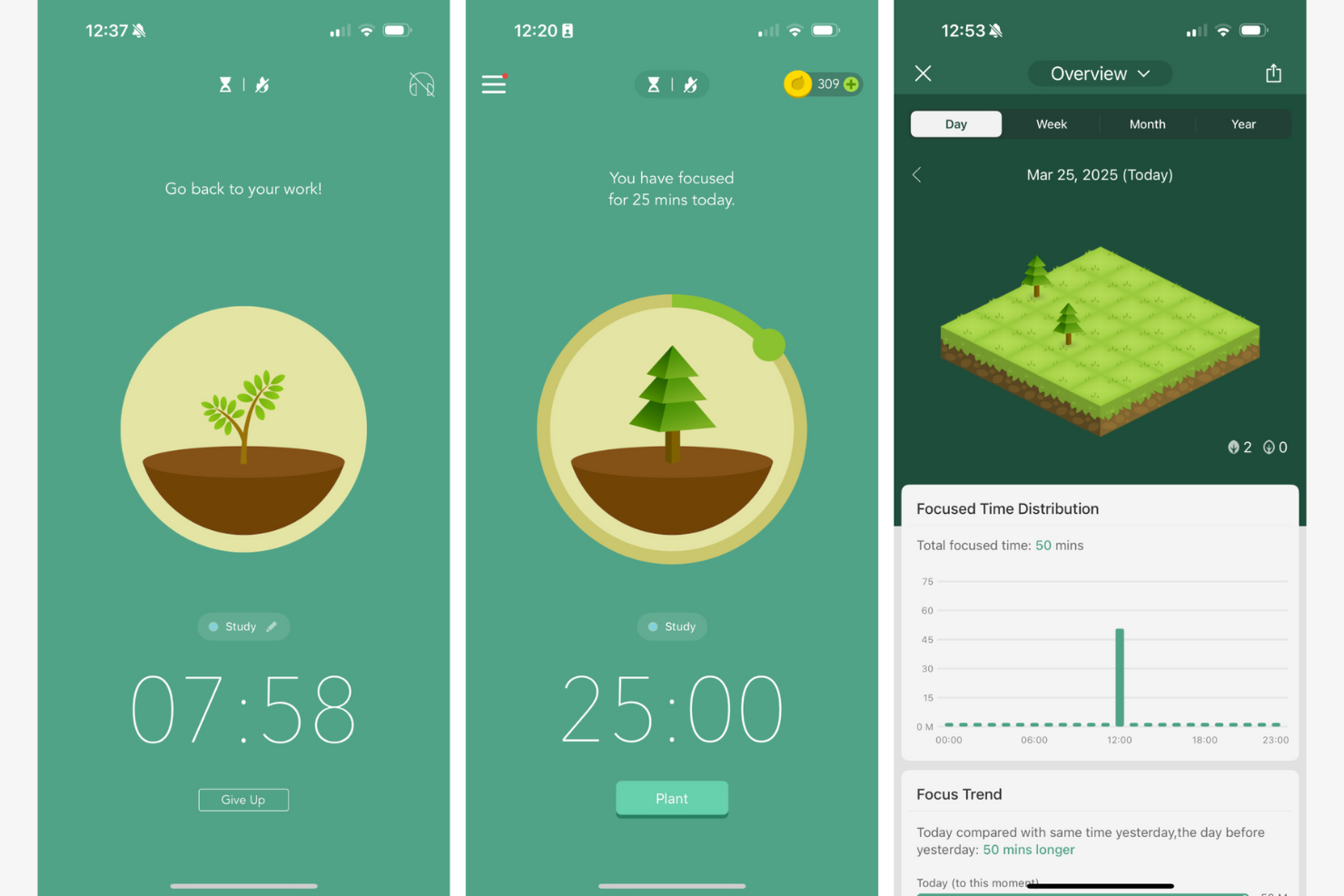
Forest uses a visual approach to help you stay focused by growing virtual trees as you work. This app is a good fit for professionals who want a tangible sense of progress while managing their time. If you’re looking for a focus tool that turns productivity into a visual experience, Forest stands out with its timer-based tree planting system.
Why I Picked Forest
I chose Forest because its visual progress tracking with timers offers a unique way to reinforce focus. The app lets you plant a virtual tree that grows as you stay on task, giving you a clear visual representation of your productivity. I find the growing forest motivates users to avoid distractions, since leaving the app causes your tree to wither. This approach is especially helpful for anyone who wants a more tangible sense of accomplishment while managing their attention.
Forest Key Features
Some other features in Forest make it a versatile choice for anyone looking to improve focus:
- Whitelist Mode: Allows you to select which apps or websites are permitted during focus sessions, giving you more control over your digital environment.
- Daily and Weekly Statistics: Tracks your focused time and displays trends to help you understand your work patterns.
- Team Mode: Lets you join focus sessions with friends or colleagues, encouraging group accountability.
- Customizable Tags: Enables you to categorize focus sessions by project or task, making it easier to review how your time is spent.
Forest Integrations
Native integrations are not currently listed.
Pros and Cons
Pros:
- Team mode enables collaborative focus challenges
- Timer-based sessions support Pomodoro-style workflows
- Visual tree growth motivates consistent focus sessions
Cons:
- No built-in support for recurring schedules
- Limited reporting export options for teams

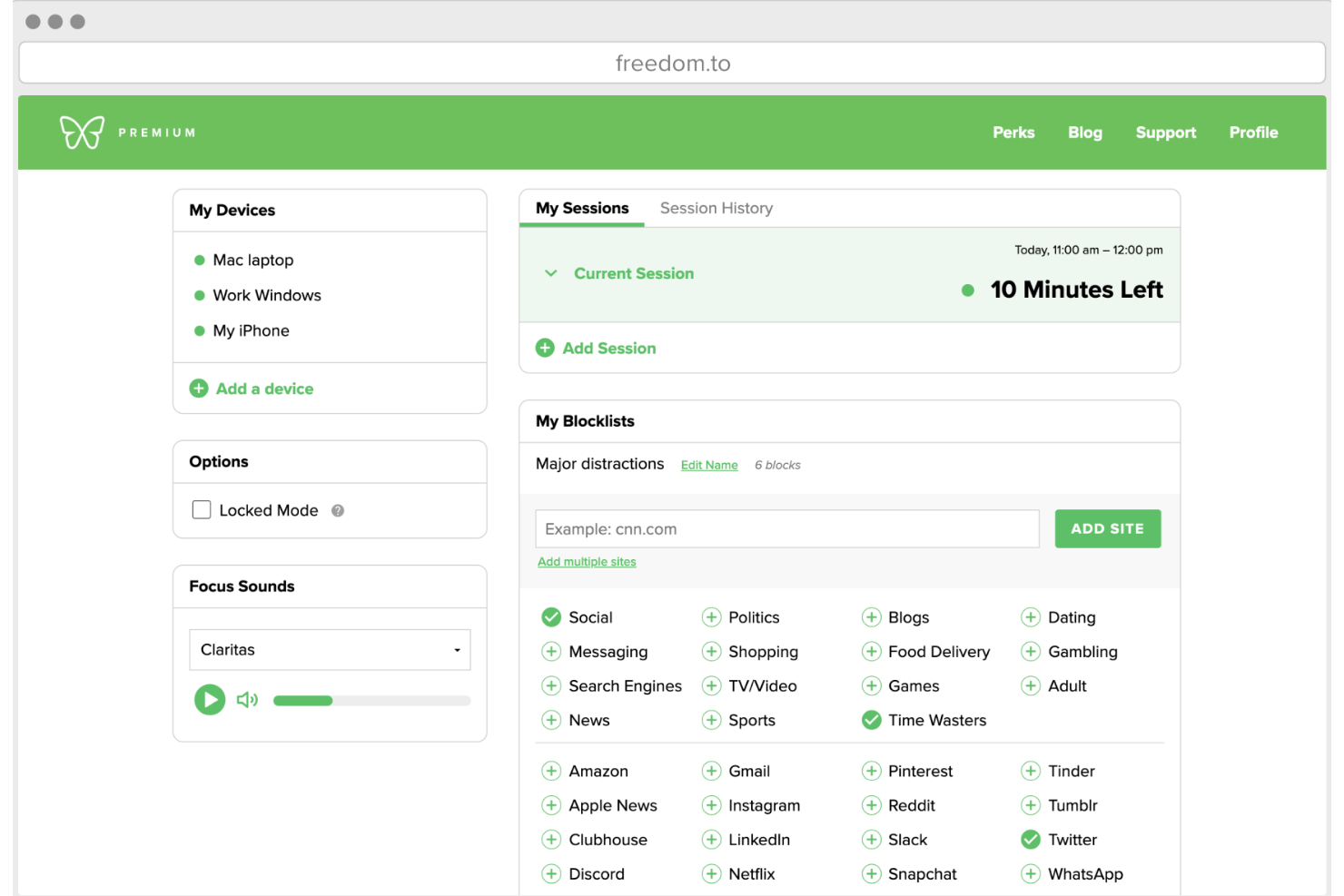
Freedom gives you control over distractions by letting you block websites and apps across all your devices at once. This tool is especially useful for remote teams, freelancers, and anyone who needs to maintain focus in a multi-device environment. If you’re looking for a way to enforce boundaries between work and distractions, Freedom’s cross-platform blocking stands out among focus apps.
Why I Picked Freedom
What sets Freedom apart is its ability to block distracting websites and apps across multiple devices at the same time. This is especially valuable for anyone who works on both a laptop and a phone, since distractions can easily jump from one device to another. I picked Freedom because you can start a session on your computer and have the same restrictions instantly apply to your phone or tablet. This unified blocking approach helps maintain focus no matter where your work happens.
Freedom Key Features
Some other features in Freedom help make it a flexible choice for managing distractions:
- Locked Mode: Prevents you from ending a session early, adding an extra layer of commitment to your focus time.
- Custom Blocklists: Lets you create and save multiple lists of sites and apps to block for different types of work sessions.
- Scheduled Sessions: Allows you to set recurring blocks in advance, so you don’t have to remember to start them manually.
- Ambient Soundscapes: Offers built-in background sounds to help you create a more focused work environment.
Freedom Integrations
Native integrations are not currently listed.
Pros and Cons
Pros:
- Custom blocklists for different work scenarios
- Locked mode prevents ending sessions early
- Blocks websites and apps across all devices
Cons:
- No built-in analytics or productivity reports
- Some users report bypass issues on Android

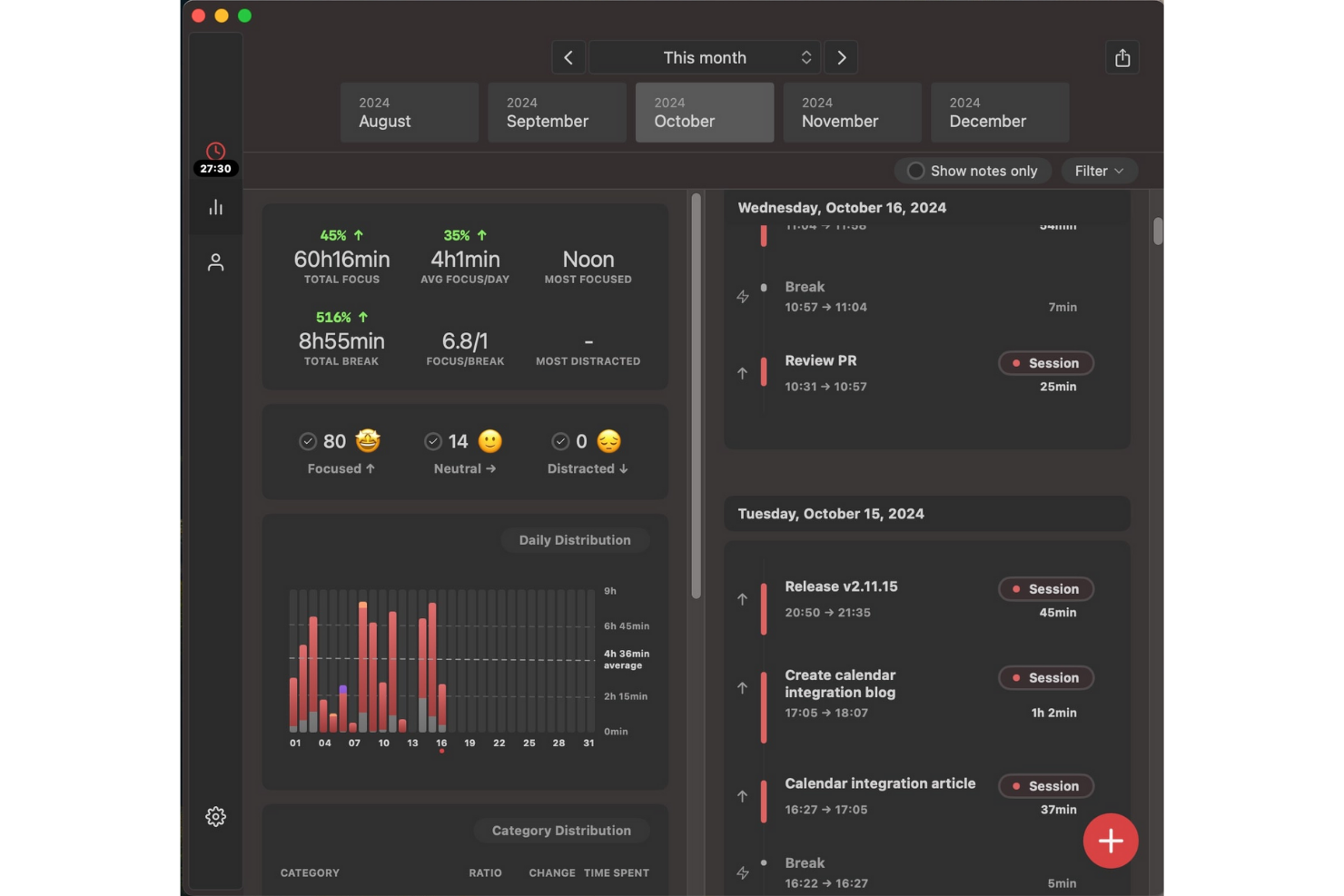
Session Pomodoro takes a unique approach to focus by guiding users through structured, distraction-free work intervals. This tool is especially useful for professionals, freelancers, and remote teams who want to break work into focused sprints and minimize interruptions. With built-in timers and session analytics, Session Pomodoro helps you maintain momentum and track your productivity patterns over time.
Why I Picked Session Pomodoro
What sets Session Pomodoro apart is its focus on creating truly distraction-free work intervals, which is essential for anyone looking to build deep work habits. I picked Session Pomodoro because it combines a minimalist interface with a built-in timer that helps you structure your day into focused sprints. The app also includes features like session analytics and automatic break reminders, so you can track your progress and avoid burnout. For anyone who wants to protect their attention and work in defined bursts, Session Pomodoro offers a focused environment that’s hard to find elsewhere.
Session Pomodoro Key Features
Some other features in Session Pomodoro help you personalize your focus experience and support your workflow:
- Distraction Blocking: Blocks access to distracting websites during active sessions.
- Session Notes: Lets you jot down quick notes or intentions before starting a session.
- Focus Music Integration: Offers built-in background music options to help you concentrate.
- Daily and Weekly Reports: Provides summaries of your completed sessions and focus trends.
Session Pomodoro Integrations
Native integrations are not currently listed.
Pros and Cons
Pros:
- Distraction blocking for specific websites
- Session notes feature for pre-session intentions
- Built-in focus music options for sessions
Cons:
- Lacks advanced analytics for long-term trends
- No mobile app for Android devices
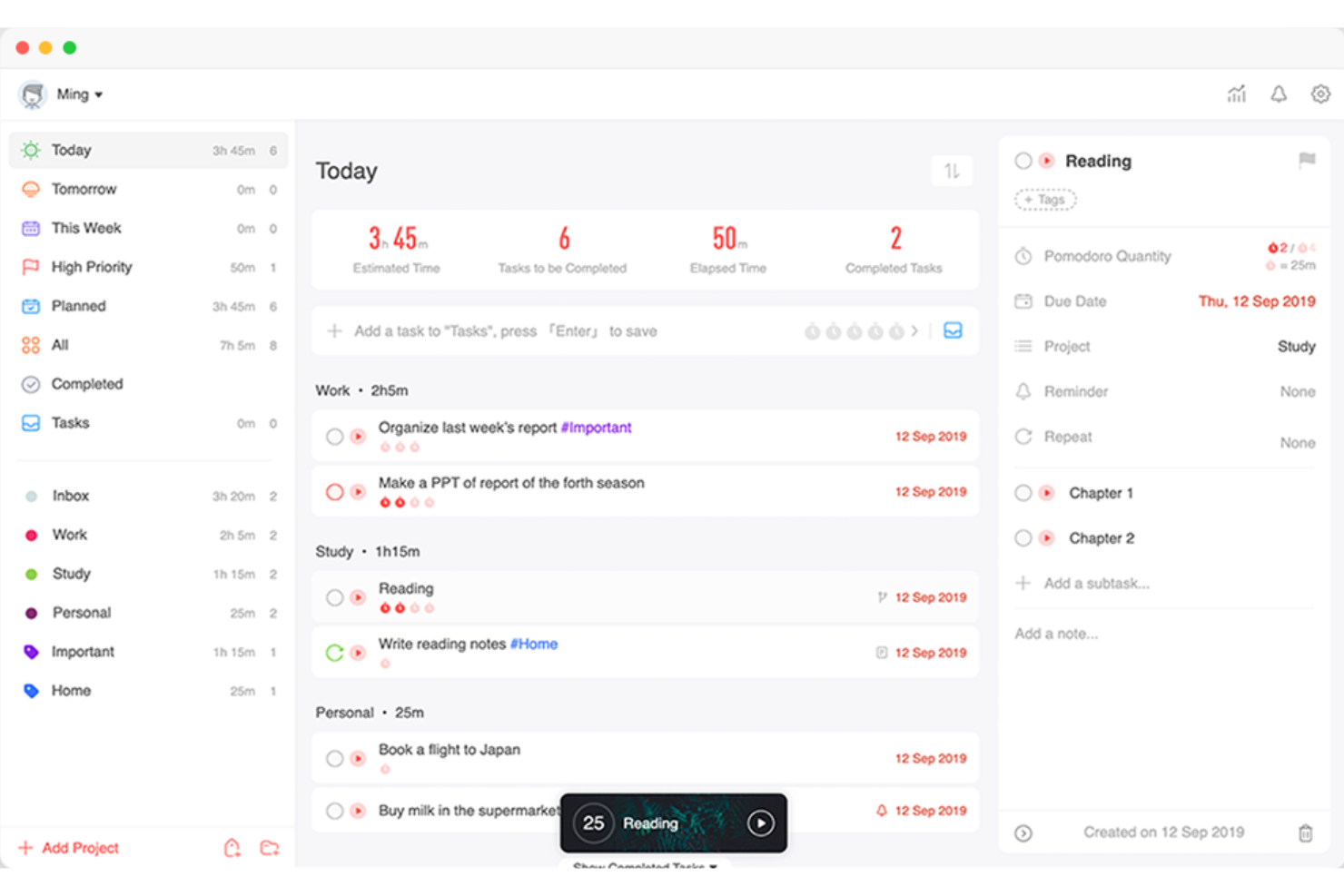
Focus To-Do brings together task management and Pomodoro timers in a single app, making it a practical choice for anyone who wants to structure their workday around focused sprints. This tool is especially useful for project managers, students, and remote workers who need to balance task lists with time-blocked work sessions. If you’re looking for a way to tie actionable tasks directly to Pomodoro cycles, Focus To-Do offers a tightly integrated approach.
Why I Picked Focus To-Do
Combining task management with Pomodoro timers in one place is what makes Focus To-Do stand out among focus apps. If you want to link your to-do list directly to timed work sessions, this tool lets you assign Pomodoro cycles to individual tasks and track your progress as you go. I picked Focus To-Do because it gives you a clear structure for breaking down work into manageable sprints, which is especially helpful for anyone juggling multiple priorities. The built-in analytics also help you see how much time you’re spending on each task, so you can adjust your workflow as needed.
Focus To-Do Key Features
Some other features in Focus To-Do help round out its approach to managing focus and productivity:
- Cross-Device Sync: Keeps your tasks and timers updated across desktop and mobile devices.
- Reminders and Due Dates: Lets you set reminders and deadlines for each task to help you stay on track.
- Subtasks: Allows you to break larger tasks into smaller, actionable steps within your main to-do list.
- Habit Tracking: Includes a built-in habit tracker so you can monitor daily routines alongside your work tasks.
Focus To-Do Integrations
Native integrations are not currently listed.
Pros and Cons
Pros:
- Syncs data across multiple device platforms
- Offers a built-in habit tracking feature
- Combines Pomodoro timer with task lists
Cons:
- No calendar view for task scheduling
- Lacks website or app blocking functionality
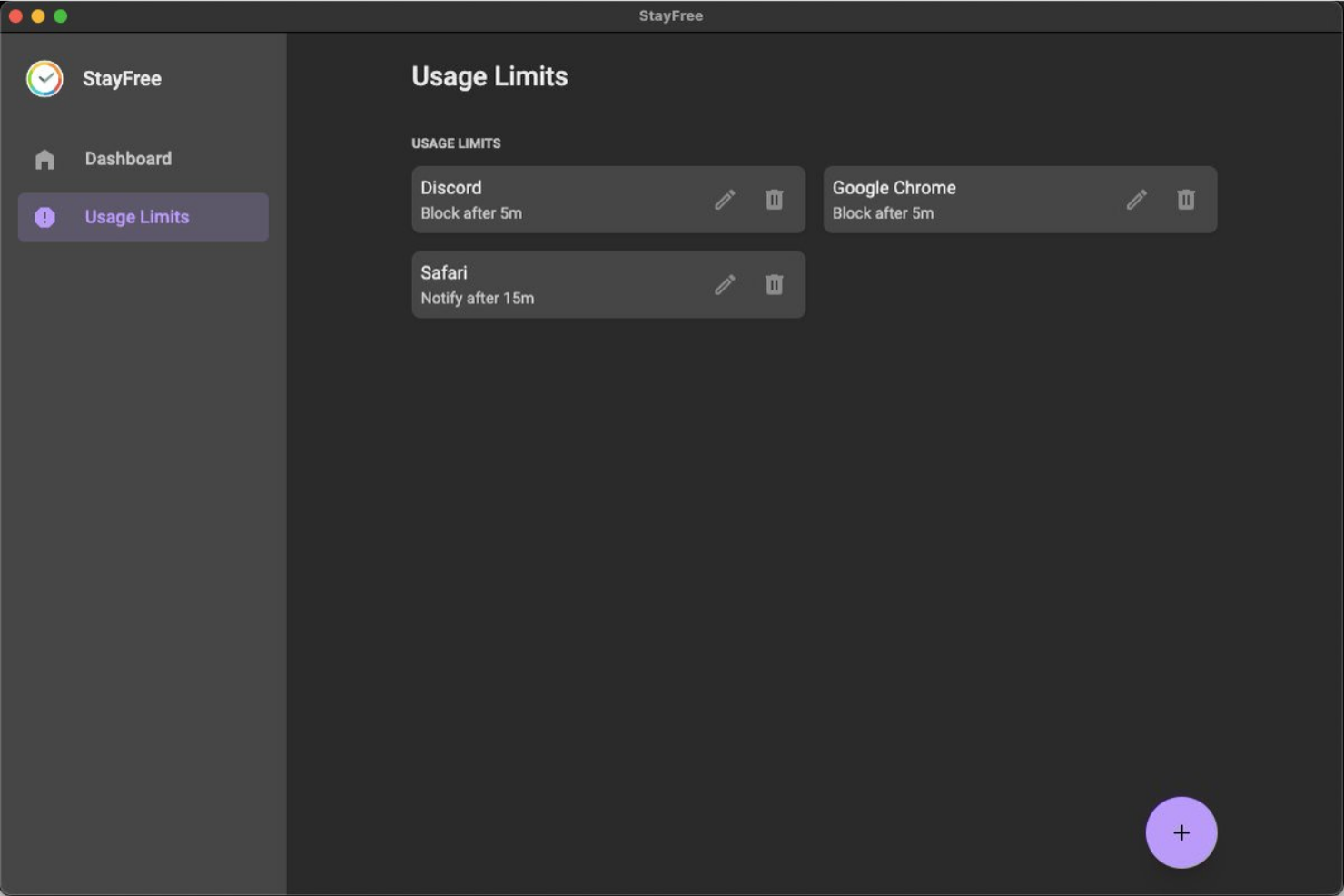
If you want to understand exactly how your time is spent on your phone, StayFree gives you detailed analytics on app usage and screen time. This tool is a strong fit for project managers, freelancers, and anyone who needs to identify digital distractions and set usage limits. StayFree stands out by offering granular reports and customizable alerts that help you take control of your digital habits.
Why I Picked StayFree
When you need to pinpoint exactly where your digital time goes, StayFree offers some of the most detailed app usage analytics available in focus apps. I picked StayFree because it tracks screen time and app usage down to the minute, giving you a clear picture of your habits. The tool also lets you set daily limits for specific apps and sends alerts when you’re close to exceeding them. For anyone serious about reducing distractions and building better focus, these analytics and controls make StayFree a strong choice.
StayFree Key Features
Some other features in StayFree help you manage your focus and digital habits more proactively:
- Historical Usage Charts: Lets you view trends in your app usage over days, weeks, or months.
- Customizable Notifications: Allows you to set personalized reminders and warnings for specific usage patterns.
- Export Data: Enables you to export your usage statistics for further analysis or reporting.
- Widget Support: Offers home screen widgets for quick access to your current usage stats.
StayFree Integrations
Native integrations are not currently listed.
Pros and Cons
Pros:
- Sends alerts when limits are reached
- Lets you set daily app usage limits
- Tracks app usage with detailed analytics
Cons:
- Does not support team or group monitoring
- Only available for Android devices

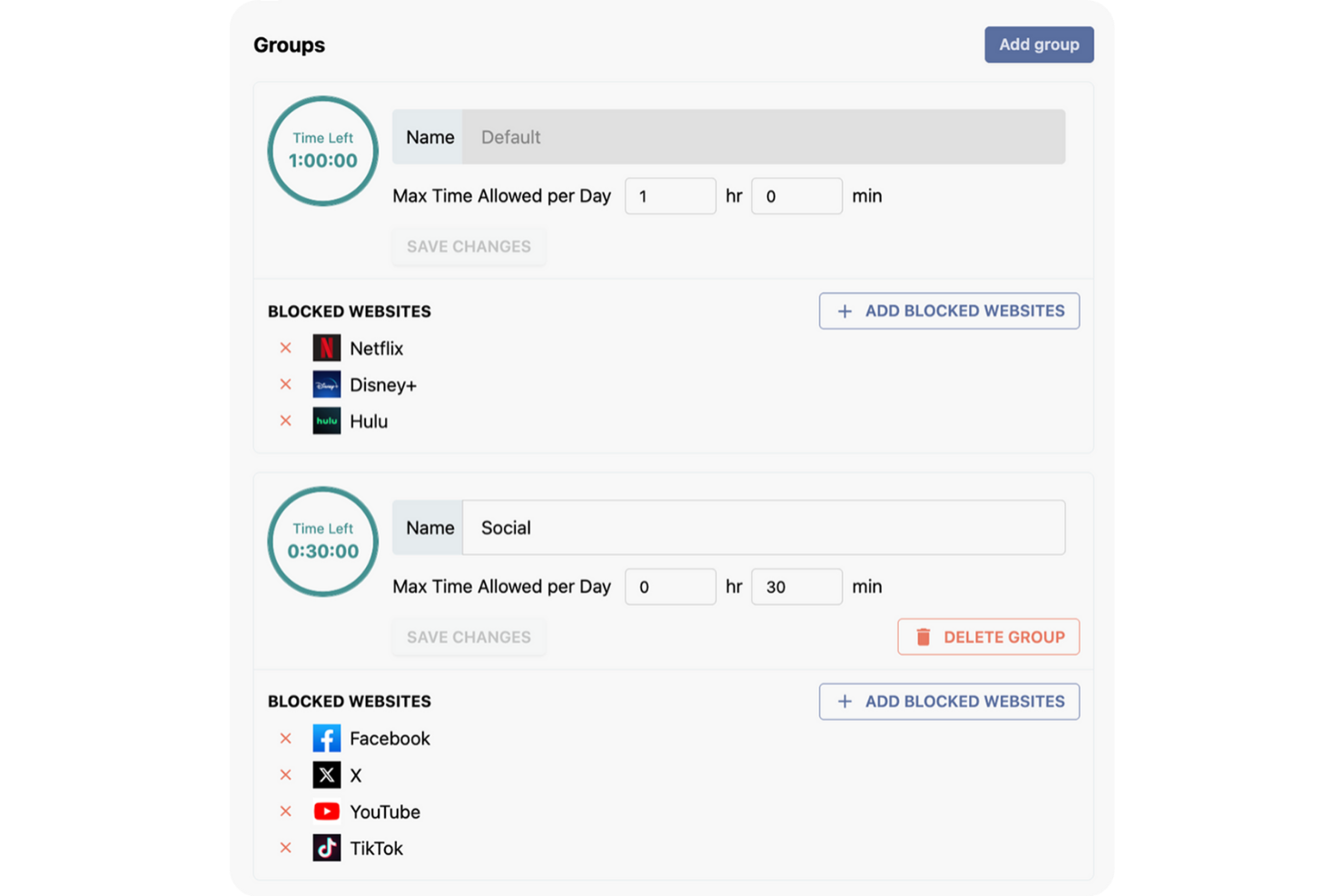
Stay Focused is designed for anyone who wants strict control over their daily digital habits, especially those who need to set precise limits on distracting websites. This tool is a strong fit for project managers, freelancers, and remote workers who want to customize which sites are accessible and for how long each day. With its flexible daily limit settings, Stay Focused helps you enforce boundaries and reclaim your focus during work hours.
Why I Picked Stay Focused
Unlike many focus apps that offer only basic blocking, Stay Focused lets you set highly customizable daily limits for specific websites or categories. I picked Stay Focused because it allows you to define exactly how much time you can spend on distracting sites each day, down to the minute. You can also create exceptions, block entire domains, or even schedule recurring focus periods. This level of control is especially useful if you want to tailor your digital boundaries to match your unique work patterns and productivity goals.
Stay Focused Key Features
Some other features you’ll find in Stay Focused include:
- Nuclear Option: Temporarily blocks all sites on your blocked list for a set period, overriding any existing settings.
- Active Days and Hours Scheduling: Lets you specify which days and times Stay Focused should enforce restrictions.
- Challenge Mode: Requires you to complete a task or answer a question before changing settings, adding friction to disabling blocks.
- Allowed Sites List: Lets you create a whitelist of sites that remain accessible even when restrictions are active.
Stay Focused Integrations
Native integrations are not currently listed.
Pros and Cons
Pros:
- Challenge Mode prevents quick disabling of blocks
- Nuclear Option blocks all sites instantly
- Customizable daily limits for individual websites
Cons:
- No team or group management features
- Does not track detailed usage analytics

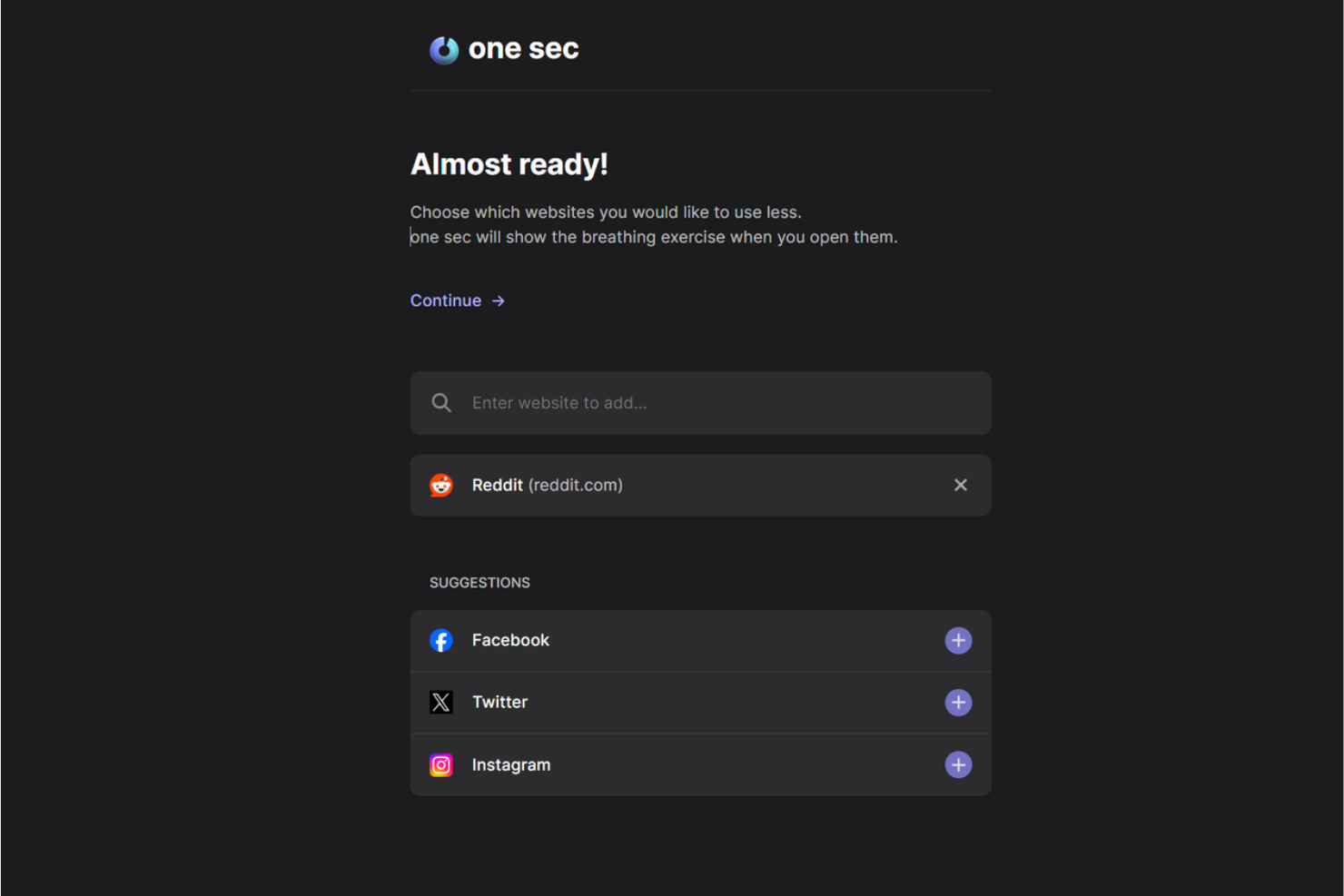
one sec introduces a deliberate pause before you open distracting apps or websites, helping you break automatic habits. This tool is especially useful for professionals, students, and anyone who wants to reduce mindless app usage throughout the workday. By adding a short delay and a mindful prompt, one sec encourages you to make more intentional choices about your digital attention.
Why I Picked one sec
Unlike most focus apps, one sec interrupts your impulse to open distracting apps by adding a short, intentional delay. I picked one sec because it uses a forced pause and a mindful breathing prompt to help you reconsider whether you really want to open an app or website. This approach is especially effective for breaking automatic scrolling habits and building more conscious digital routines. For anyone who struggles with mindless app usage, one sec’s intentional delay creates a valuable moment to reset your focus.
one sec Key Features
Some other features in one sec help you customize your experience and track your progress:
- App and Website Blocking: Lets you set up intentional delays for both apps and websites across devices.
- Analytics Dashboard: Shows detailed statistics on how often you attempt to open blocked apps or sites.
- Shortcuts and Automation Support: Integrates with Apple Shortcuts for custom workflows and triggers.
- Focus Mode Scheduling: Allows you to schedule specific times when delays or blocks are active.
one sec Integrations
Native integrations are not currently listed.
Pros and Cons
Pros:
- Tracks and displays app opening statistics
- Mindful breathing prompt before app opens
- Customizable delay times for each app
Cons:
- Delay can be bypassed with repeated attempts
- Requires device-level permissions for setup

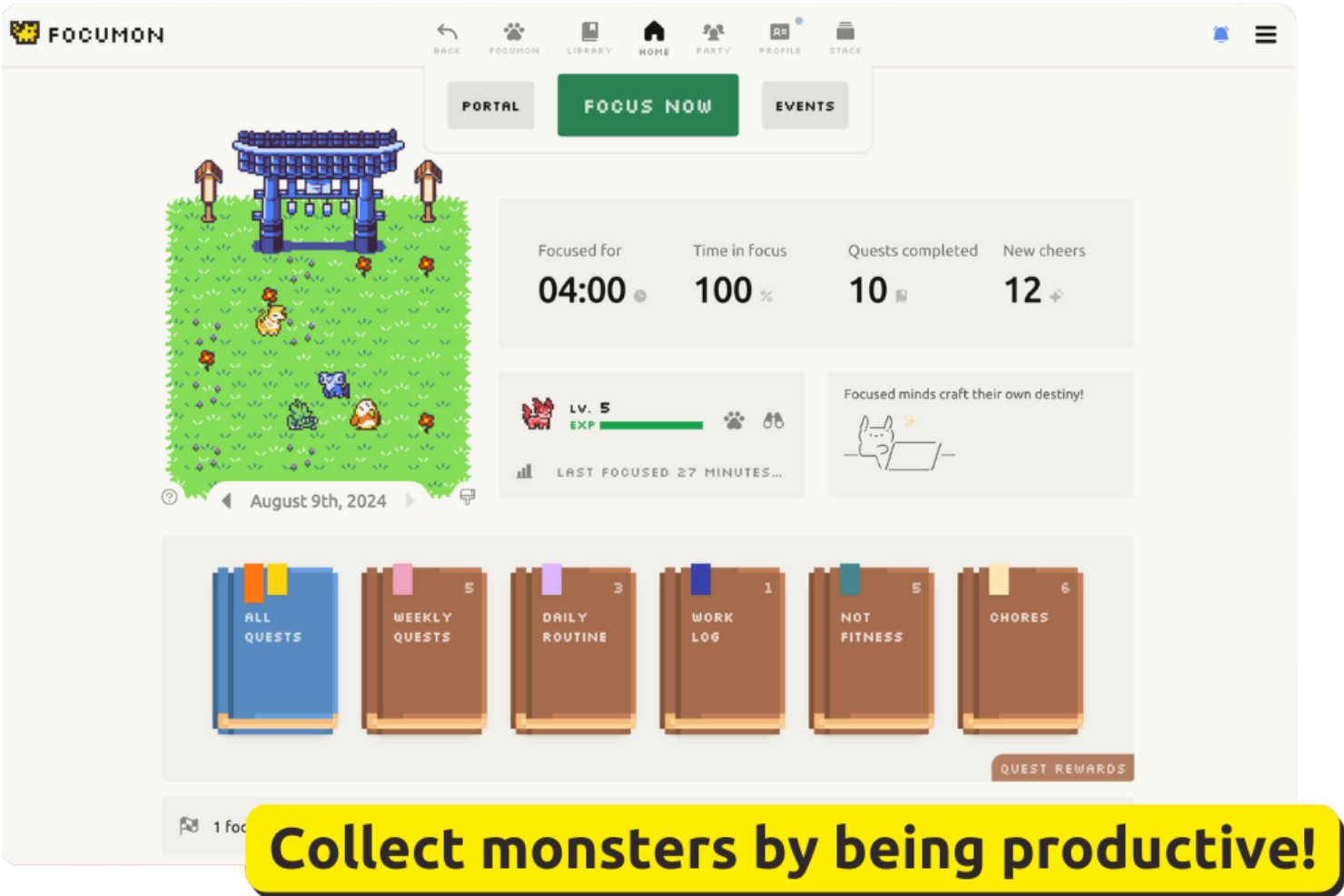
Focumon turns productivity into a game by letting you earn and collect digital creatures as you complete tasks. This approach appeals to teams and individuals who want a playful way to stay motivated and accountable. If you’re looking for a focus app that rewards progress with tangible, gamified incentives, Focumon offers a unique twist on habit-building.
Why I Picked Focumon
What sets Focumon apart is its creative use of gamified incentives to drive productivity. I picked Focumon because it transforms task completion into a rewarding experience by letting you collect and evolve digital creatures as you stay focused. The platform also introduces competitive and collaborative elements, allowing users to join teams and participate in productivity challenges. For anyone who finds traditional focus apps uninspiring, Focumon’s playful approach can make building better habits feel genuinely engaging.
Focumon Key Features
In addition to its gamified rewards system, I also found these features worth noting:
- Daily Focus Timer: Tracks your focused work sessions and helps you monitor productivity streaks.
- Task List Integration: Lets you create, organize, and check off tasks directly within the platform.
- Progress Analytics: Provides visual reports on your completed tasks and focus trends over time.
- Customizable Avatars: Allows you to personalize your digital creatures with unique accessories and themes.
Focumon Integrations
Native integrations are not currently listed.
Pros and Cons
Pros:
- Visual progress analytics track productivity trends
- Team challenges encourage group accountability
- Gamified rewards system motivates consistent focus
Cons:
- No offline functionality for focus sessions
- Progress resets if daily streak is broken

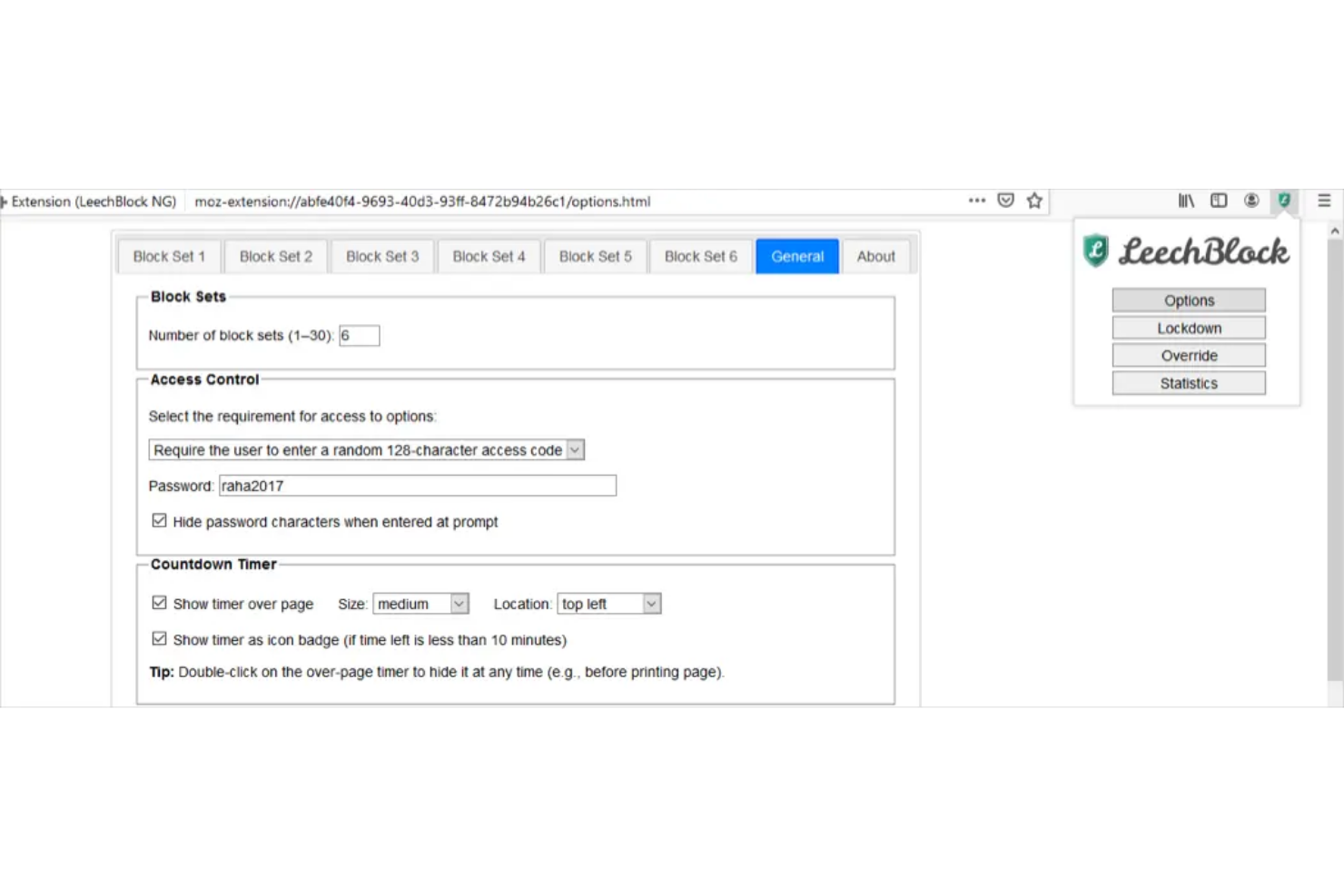
LeechBlock NG is a browser extension designed for anyone who needs granular control over distracting websites. It’s especially useful for professionals and students who want to set up detailed blocking schedules and custom rules for different sites. If you’re looking for a focus app that lets you fine-tune exactly when and how sites are blocked, LeechBlock NG offers a level of flexibility that’s hard to match.
Why I Picked LeechBlock NG
LeechBlock NG stands out for its ability to create highly customized browser blocking rules, which is essential for anyone who needs strict control over online distractions. I picked LeechBlock NG because it lets you set up multiple blocking sets, each with its own schedule, time limits, and exceptions. You can block sites based on specific days, hours, or even after a certain amount of time spent browsing. For users who want to tailor their focus app to match complex work routines or personal productivity goals, LeechBlock NG offers unmatched flexibility.
LeechBlock NG Key Features
Some other features that make LeechBlock NG appealing for focus management include:
- Password Protection: Requires a password to access blocked sites or change settings.
- Lockdown Mode: Instantly blocks all specified sites for a set period.
- Customizable Block Messages: Lets you display personalized messages when a blocked site is accessed.
- Statistics Dashboard: Tracks and displays your browsing and blocking activity over time.
LeechBlock NG Integrations
Native integrations are not currently listed.
Pros and Cons
Pros:
- Lockdown mode enables immediate, total blocking
- Password protection prevents bypassing restrictions
- Supports unlimited custom blocking sets and rules
Cons:
- No built-in focus timer or Pomodoro feature
- No mobile app or cross-device sync

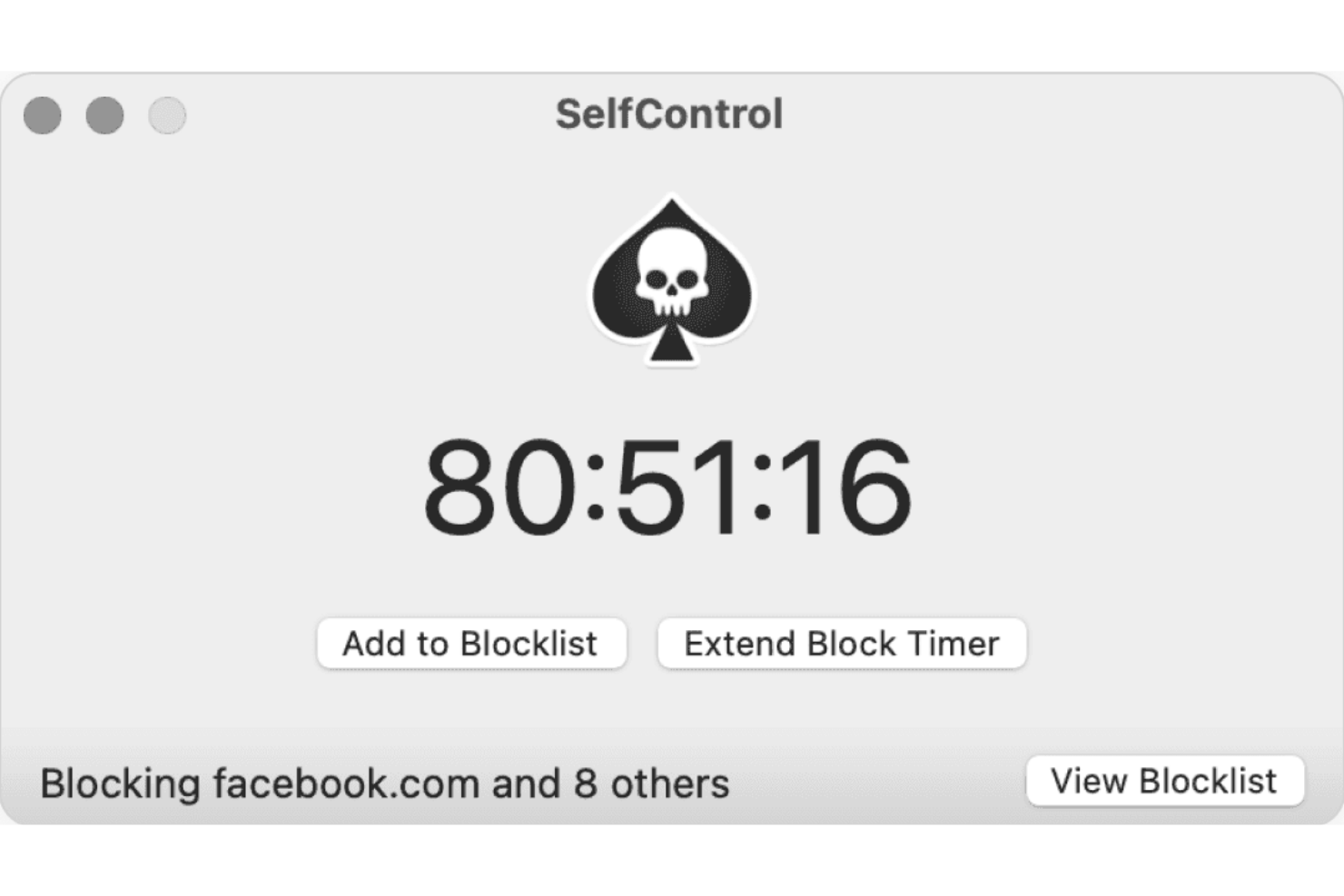
If you need a no-excuses approach to blocking distractions on your Mac, SelfControl is built for you. This app appeals to students, freelancers, and anyone who wants to enforce strict website blocking that can’t be undone—even by restarting your device. SelfControl is a strong choice if you want a focus app that makes it impossible to access blocked sites until your timer runs out.
Why I Picked SelfControl
What sets SelfControl apart is its uncompromising approach to blocking access to distracting websites on Mac devices. I picked SelfControl because once you start a block session, there’s no way to disable it—not even by restarting your computer or deleting the app. This strict enforcement is ideal for anyone who needs a focus app that removes all temptation to override their own rules. For users who struggle with self-discipline or need a hard barrier against online distractions, SelfControl’s irreversible timer and blacklist features make it uniquely effective.
SelfControl Key Features
Some other features that make SelfControl useful for focus sessions include:
- Custom Blocklist: Lets you add any website or mail server to your personal blocklist.
- Adjustable Timer: Allows you to set block sessions anywhere from 15 minutes to 24 hours.
- Open Source Code: Provides transparency and the ability for users to review or modify the app.
- Lightweight Application: Runs with minimal system resources and doesn’t require background services.
SelfControl Integrations
Native integrations are not currently listed.
Pros and Cons
Pros:
- Open source for transparency and community input
- No way to disable timer once started
- Blocked sites remain inaccessible after restarting
Cons:
- Cannot whitelist sites during a block session
- No scheduling or recurring block sessions
Andre fokusapper
Her er noen andre fokusapper som ikke kom med på kortlisten min, men som likevel er verdt å sjekke ut:
- Focus Friend
For accountability partner integration
- Cold Turkey Blocker
For scheduled lockout sessions
- Todoist
For team collaboration features
- Brain.fm
For productivity-boosting music
- Microsoft To Do
With Microsoft 365 ecosystem
- TickTick
For built-in calendar integration
- Things
For intuitive task organization
- Sunsama
For daily planning workflows
- Habitify
For habit tracking alongside tasks


How I Evaluate Focus Apps
I look for tools that clear two bars: the baseline requirements—like distraction blocking and session tracking—and the differentiators that make one app a better fit than another for how project teams actually work.
Core Functionality (Table Stakes For This List)
When I'm selecting tools for my list, I rank each one on a scale from 0 (does not offer the functionality) to 5 (excels in this area) for each core functionality listed below. Then, I calculate the tool's total score into a percentage. Each tool needs to achieve a minimum total score of 65% to be considered for inclusion.
- Distraction Blocking: I check whether the app blocks websites, apps, and notifications—and whether it offers strict or lockdown modes that prevent you from overriding blocks mid-sprint.
- Focus Timer or Pomodoro: The timer should support multiple session styles, like classic Pomodoro intervals or longer deep-work blocks for planning sessions and backlog grooming.
- Session Tracking & Analytics: I look for logged session history and trend reports that help you see where your focus hours actually go across a workweek.
- Task or Project Integration: Connecting a focus session to a specific task in tools like Asana, Jira, or Todoist turns time data into something useful for standups and sprint reviews.
- Cross-Device Availability: I evaluate whether the app runs on desktop, mobile, and browser with synced data, so your focus setup follows you between a laptop and a phone.
- Customizable Work/Break Rules: Good focus apps let you configure session lengths, break intervals, and blocklists per project—so your rules for creative work differ from your rules for admin tasks.
Once I have a list of tools that meet the criteria, I consider what sets each platform apart.
Differentiating Factors (What Sets Vendors Apart)
Here's how I compare and contrast different vendors:
Standout Features
Team focus sessions are a big deal for remote project leads—apps like Flown and Focusmate let distributed teammates co-work in real time, which builds accountability during sprint pushes. I also look for calendar sync that pulls in your Google Calendar or Outlook schedule and auto-blocks focus time around existing meetings. Gamification features like streaks and virtual rewards help sustain focus habits over weeks, not just one productive afternoon.
Beyond Features
Pricing structure matters—I check whether a tool offers a free tier for solo PMs exploring options and transparent per-seat pricing for rolling it out across a project team. Privacy and data handling also deserve a close look, especially for apps that track screen activity or browsing behaviour. I evaluate whether the vendor is clear about what data it collects and how it stores it. Team admin capabilities round out my assessment; scrum masters and program coordinators need aggregate dashboards and shared blocklist controls without crossing into micromanagement.
Slik velger du fokusapper
Det er lett å gå seg vill i lange funksjonslister og kompliserte prismodeller. For å hjelpe deg med å holde fokus mens du arbeider deg gjennom din unike prosess for valg av programvare, har vi laget en sjekkliste over faktorer du bør ha i bakhodet:
| Faktor | Hva du bør vurdere |
|---|---|
| Skalerbarhet | Vil verktøyet støtte behovene dine etter hvert som teamet eller arbeidsmengden vokser? Vurder brukergrenser og muligheter for oppgradering. |
| Integrasjoner | Kan appen kobles til de eksisterende verktøyene dine, for eksempel kalendere eller plattformer for prosjektstyring? Se etter innebygde integrasjoner, ikke bare API-tilgang. |
| Tilpasningsmuligheter | Kan du tilpasse blokkeringslister, tidsplaner og varsler etter arbeidsflyten din? Unngå verktøy som tvinger deg inn i rigide strukturer hvis behovene dine er unike. |
| Brukervennlighet | Er grensesnittet enkelt å forstå for alle brukere? Se etter tydelig navigasjon og minimale opplæringsbehov, særlig for distribuerte team. |
| Implementering og innføring | Hvor raskt kan teamet komme i gang? Se etter ressurser for innføring, støtte ved migrering og om oppsettet krever involvering fra IT-avdelingen. |
| Kostnad | Passer prismodellen til budsjettet og bruksmønstrene dine? Vær oppmerksom på skjulte gebyrer, kostnader per bruker eller nødvendige oppgraderinger for grunnleggende funksjonalitet. |
| Sikkerhetstiltak | Hvordan beskytter verktøyet dataene og personvernet ditt? Se etter kryptering, retningslinjer for datalagring og administratorkontroller, særlig hvis du håndterer sensitiv informasjon. |
| Tilgjengelig kundestøtte | Hvilke støttekanaler tilbys, og på hvilke tidspunkter? Vurder om du trenger chat med kundestøtte i sanntid, telefonstøtte eller bare e-post, og om kundestøtte er inkludert eller koster ekstra. |
Hva er fokusapper?
Fokusapper er produktivitetsapper som er utviklet for å hjelpe brukere med å minimere distraksjoner og opprettholde konsentrasjonen under arbeids- eller studieøkter. Disse beste appene blokkerer ofte tilgangen til distraherende nettsteder som sosiale medier, planlegger fokusperioder og sporer produktivitetsmønstre for å redusere utsettelse og hjelpe deg med å få mer gjort på kortere tid. Mange er tilgjengelige på plattformer som App Store og Google Play, tilbyr en gratisversjon og støtter enheter med macOS og Windows. Noen inkluderer også spillifisering for å gjøre det mer engasjerende å holde fokus.
Funksjoner i fokusapper
Når du velger fokusapper, bør du se etter følgende viktige funksjoner:
- Blokkering av nettsteder og apper: Forhindrer tilgang til distraherende nettsteder eller apper under planlagte fokusperioder, slik at brukerne kan holde seg til oppgaven.
- Planlagte økter: Lar brukerne angi bestemte tidspunkter for fokus- eller pauseperioder, noe som støtter strukturerte arbeidsrutiner og tidsstyring.
- Tilpassede blokkeringslister: Lar brukerne opprette personlige lister over nettsteder eller apper som skal blokkeres, slik at opplevelsen kan tilpasses individuelle distraksjonsutløsere.
- Låsemoduser: Håndhever begrensninger som ikke enkelt kan omgås, slik at brukerne forblir forpliktet til fokusøktene sine.
- Produktivitetssporing: Overvåker tiden som brukes i fokusmodus, og gir rapporter eller analyser som hjelper brukerne med å forstå og forbedre vanene sine.
- Passordbeskyttelse: Krever et passord for å endre eller deaktivere blokkeringsinnstillinger, noe som gir et ekstra lag med ansvarlighet.
- Motiverende meldinger: Viser egendefinerte eller forhåndsinnstilte meldinger når brukerne forsøker å få tilgang til blokkert innhold, og forsterker fokuseringsmålene.
- Pausepåminnelser: Varsler brukerne når det er på tide å ta en pause, noe som støtter sunne arbeidsrytmer og reduserer utbrenthet.
- Støtte for flere enheter: Gjør det mulig å blokkere og spore aktivitet på flere enheter, slik at fokuset opprettholdes både på datamaskiner og mobile enheter.
- Brukerprofiler: Lar flere brukere konfigurere individuelle innstillinger og tidsplaner, noe som gjør appen egnet for team eller delte enheter.
Fordeler med fokusapper
Implementering av fokusapper gir flere fordeler for teamet og virksomheten din. Her er noen av fordelene du kan se frem til:
- Færre digitale distraksjoner: Blokkering av tilgangen til distraherende nettsteder og apper hjelper brukerne med å opprettholde konsentrasjonen og unngå avbrytelser under arbeidsøkter.
- Bedre tidsstyring: Planlagte økter og pausepåminnelser oppmuntrer til strukturerte arbeidsvaner og mer bevisst bruk av tiden.
- Større ansvarlighet: Låsemoduser og passordbeskyttelse gjør det vanskeligere å omgå begrensninger, og hjelper brukerne med å holde fast ved fokuseringsmålene sine.
- Bedre innsikt i produktiviteten: Produktivitetssporing og analyser gir brukere og ledere innsikt i fokusmønstre og områder som kan forbedres.
- Personlige fokusstrategier: Tilpassede blokkeringslister og motiverende meldinger lar brukerne tilpasse appen til sine unike utløsere og preferanser.
- Konsekvent fokus på tvers av enheter: Støtte for flere enheter sikrer at fokusgrensene opprettholdes enten arbeidet utføres på en datamaskin eller en mobil enhet.
- Sunnere arbeidsrutiner: Innebygde pausepåminnelser bidrar til å forhindre utbrenthet og fremmer bærekraftige og balanserte arbeidsvaner.
Kostnader og priser for fokusapper
Ved valg av fokusapper er det viktig å forstå de ulike prismodellene og abonnementene som er tilgjengelige. Kostnadene varierer basert på funksjoner, teamstørrelse, tillegg og mer. Tabellen nedenfor oppsummerer vanlige abonnementer, gjennomsnittsprisene deres og typiske funksjoner som er inkludert i fokusappløsninger:
Sammenligningstabell for abonnementer til fokusapper
| Abonnementstype | Gjennomsnittspris | Vanlige funksjoner |
|---|---|---|
| Gratisabonnement | $0 | Grunnleggende blokkering av nettsteder og apper, begrensede planlagte økter, enkle rapporter og støtte for én enhet. |
| Personlig abonnement | $5–$10 per bruker per måned | Ubegrensede blokkeringslister, avansert planlegging, produktivitetssporing, passordbeskyttelse og synkronisering på flere enheter. |
| Forretningsabonnement | $10–$25 per bruker per måned | Teamadministrasjon, brukerprofiler, sentraliserte administratorkontroller, bruksanalyse og prioritert kundestøtte. |
| Virksomhetsabonnement | $25–$50 per bruker per måned | Tilpassede integrasjoner, avanserte sikkerhetstiltak, hjelp med oppstart, funksjoner for samsvar og dedikert kontoadministrasjon. |
Vanlige spørsmål om fokusapper
Her er noen svar på vanlige spørsmål om fokusapper:
Kan fokusapper brukes på flere enheter?
Ja, mange fokusapper støtter flere enheter. Dette lar deg blokkere distraksjoner og følge med på fokusøkter både på datamaskiner og mobile enheter, slik at du får konsekvente grenser uansett hvor du jobber.
Hvordan håndterer fokusapper planlagte pauser?
De fleste fokusapper lar deg planlegge både fokusperioder og pauser. Appen varsler deg når det er på tide å ta en pause, slik at du kan opprettholde en sunn arbeidsrytme og unngå utbrenthet.
Er fokusapper egnet for team eller bare enkeltpersoner?
Ja, flere fokusapper har funksjoner for team. Disse kan omfatte sentraliserte administratorkontroller, brukerprofiler og rapportering for hele teamet, noe som gjør dem nyttige både for enkeltpersoner og grupper.
Hva skjer hvis jeg trenger tilgang til et blokkert nettsted under en økt?
Noen fokusapper tillater nødtilgang eller krever et passord for å oppheve en blokkering, mens andre håndhever strenge låsemoduser som ikke kan omgås. Sjekk appens innstillinger for å se hvilken løsning som passer dine behov.
Lagrer eller deler fokusapper dataene mine?
De fleste fokusapper lagrer bruksdata lokalt eller i skyen, avhengig av produktet. Gå gjennom personvernerklæringen og sikkerhetstiltakene for hver app for å forstå hvordan dataene dine håndteres, og om de deles med tredjeparter.